
We are going to explain how to download WhatsApp for anyone, and we are going to do it with a method that you will not need to have an application on your mobile or anything, simply from the browser. Of course, to use this method, you will need a browser and your account linked to WhatsApp Web.
What we are going to do is open the developer tools in your browser, which are available in Chrome, Edge, Brave, and other browsers. There, we will go to the tab to monitor what is loaded on a website, and we will begin to see the states. This will show links to the images or videos of the status you have seen, and you can use them to download them.
Download WhatsApp Status From the Web
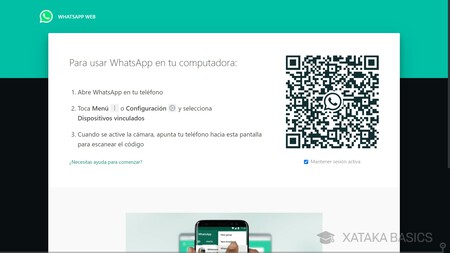
The first thing you have to do, if you haven’t already, is link your mobile to WhatsApp Web.For that, go to the web.whatsapp.com website, and follow the steps indicated to link the device. Once you link the account, within WhatsApp Web, go to the section where the states appear.

When you enter the screen where you can see the states, right-click on the free space of the browser. In the pop-up menu, click on the Inspect option. You will also be able to enter here by choosing the Developer Tools option, which you can access by pressing Control + Shift + i at the same time.
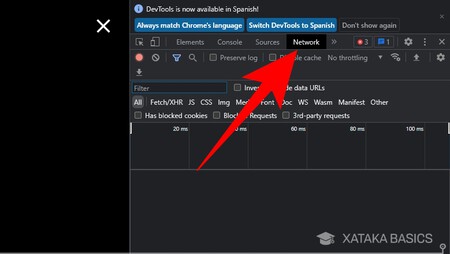
On the right side of the browser, a column with options will open, including developer tools. In it, go to the Network tab, which may also appear as Network. You will see that in the column where you are, a temporary line appears below. In it, you can see the elements the web loads every time you visit a site.
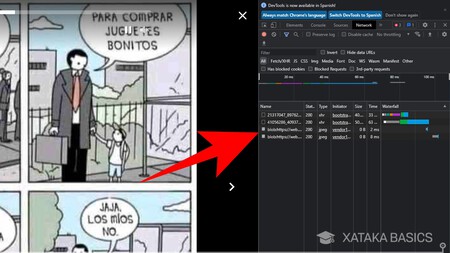
While in this Network tab, click the states you want to start seeing. When you do, you’ll see that loading states will show files on the timeline. If you look closely, among the loaded elements, there will be some in photo or video format, such as the JPEGs of the capture. These files will be the state’s content, and you can click on them to view them.
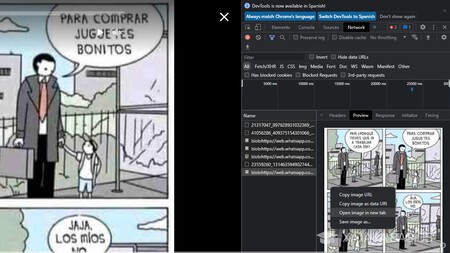
If you see more states, they will all be loaded in this list, although there will also be elements that are pure code. As you click the elements, you will see the previews on the same screen. When you find the story you want to download, right-click it to see the options, where you can copy the image to the clipboard, copy the image URL, open it in a new tab, or download it.
What I usually do is load the status in another tab, where I can see it without a time limit and download it if I want. You can do what suits you best, like downloading it directly or copying it to paste it in any other application.

June 9, 2026

June 9, 2026

June 9, 2026

June 9, 2026

June 9, 2026