

Contents
Saving a video someone has sent you on Snapchat isn’t as straightforward as it is on other messaging apps. Unlike most platforms, Snapchat’s photos and videos have a limited viewing time, often up to just 10 seconds. If you want to preserve the content you send or receive for longer, you’ll need to take a few extra steps to save it either within the Snapchat app or to your device’s camera roll.
To help you achieve this, we’ve outlined several methods you can use to download Snapchat videos to your iPhone or Android phone. If this topic intrigues you, continue reading to discover how you can effectively save Snapchat videos for future enjoyment.
Download Snapchat Videos
How to Retain Your Personal Snapchat Videos Prior to Sharing
- Initiate video recording on Snapchat by pressing and holding the shutter button. Once the preview screen appears, tap the “Save” button in the lower-left corner to save the video.
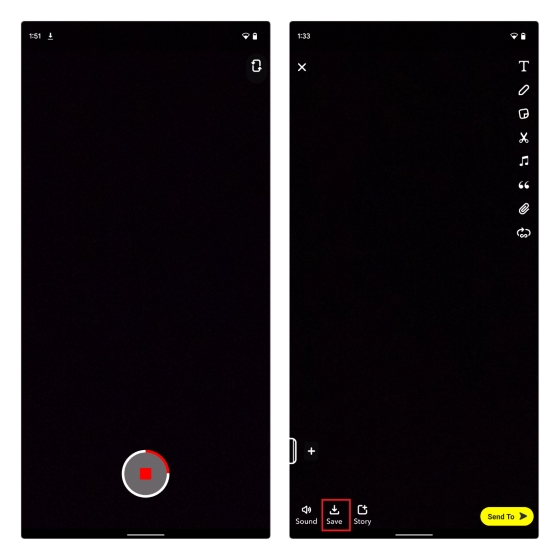
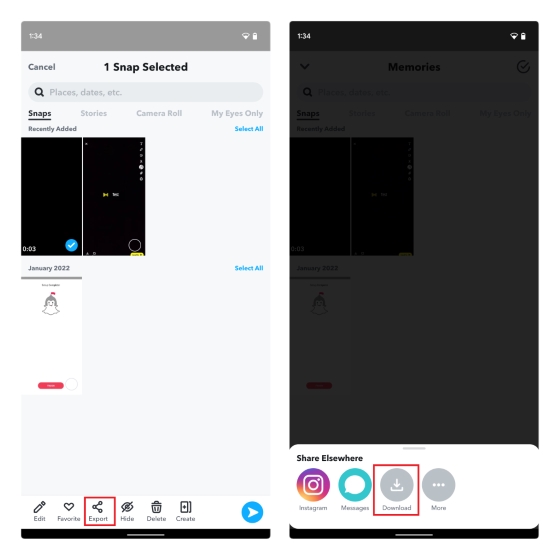
- Snapchat will systematically retain your video within the “Snaps” category of Memories within the application. To reach Memories, simply tap the card icon next to the shutter button in the camera interface.

- To proceed, press and hold the saved video, then select “Export” from the array of options that appear at the bottom of the screen. Subsequently, when the sharing menu appears, tap the “Download” option to save the Snapchat video to your device’s photo gallery. Should you desire to shield certain visuals from inquisitive friends or family, Snapchat offers the “My Eyes Only” feature, which can be configured and employed for this purpose.
Securing Snapchat Videos from Your Personal Story
If you’re seeking to safeguard a video you’ve shared in your Snapchat Story, that’s entirely possible as well. Adhere to the steps outlined below to familiarize yourself with the process:
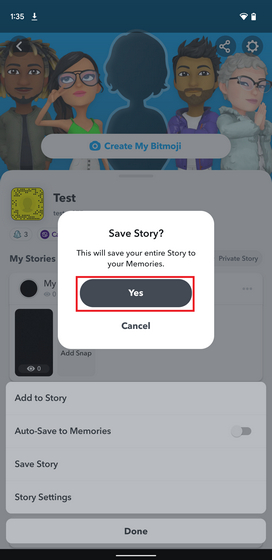
- Navigate to your profile page by tapping the Bitmoji icon positioned at the upper-left corner of the screen. Next, locate the horizontal three-dot menu icon adjacent to the “My Story” label. Once a pop-up appears in the lower section of the screen, select “Save Story.”

- A confirmation prompt will appear, notifying you that Snapchat intends to preserve the entire Story in your Memories. To proceed, tap “Yes” to confirm. This approach will archive all of your Stories within the Memories section. Alternatively, you also have the option to selectively save individual stories as desired.
- To save specific stories, open the desired Story from your profile page and either swipe up or tap the vertical three-dot menu icon in the top-right corner of the screen. Subsequently, tap the “Save” button positioned at the lower-left corner to complete the preservation process.

- As highlighted previously, you can now prolong your touch on the video stored within “Memories” and then select the “Export” button. In the share sheet, tap “Download” to seamlessly transfer the Snapchat video to your device’s camera roll.

Saving Snapchat Videos from Other Users (Timeless Videos)
In the case of receiving a continuous Snapchat video, one devoid of an expiration timer, you are presented with the opportunity to conserve the video directly within the chat window. Subsequently, you can proceed to download the preserved video to your device’s camera roll. Here’s a concise guide on how to execute this:
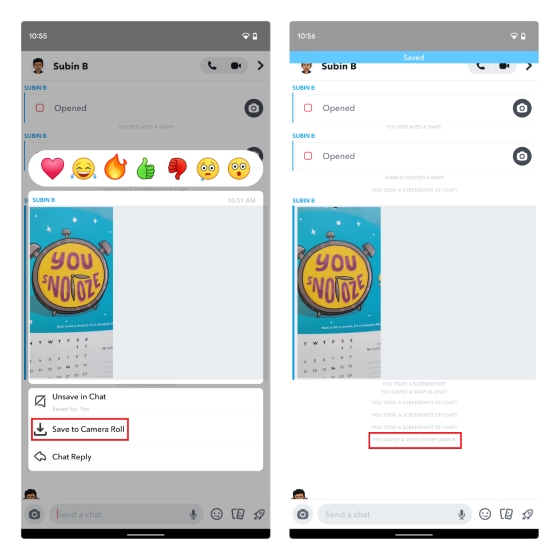
- To commence, apply a prolonged press on the video you’ve received from another user, and subsequently, opt for the “Save in Chat” choice. Do take note that this option won’t be visible for images and videos designated as “play once” prior to dispatching. After the video is preserved in the chat, Snapchat will notify both the sender and recipient, making the video accessible in the conversation interface.
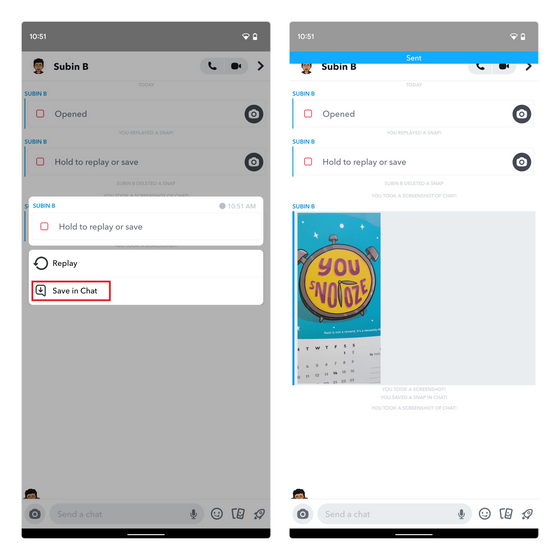
- Next, press the saved video again and select the “Save to Camera Roll” option. It’s important to note that Snapchat will also notify the sender of your decision to save the video to your camera roll. This aspect underscores the messaging app’s strong emphasis on preserving your privacy, exemplifying the extensive measures it takes to protect your private photos and videos.
Download Snapchat Videos from Other Users (Time-Limited Content)
When dealing with Snapchat videos that have an expiration timer, the platform does not allow direct download of content sent by other users. However, should you still wish to retain these videos, your options are to use your phone’s screen recording feature or rely on a leading screen recording app. For comprehensive guidance on recording your screen on an iPhone or iPad, refer to our detailed guide on our website.
Nevertheless, it’s essential to note that employing screen recording might trigger notifications for the sender, revealing your actions. Given this consideration, we advise against recording videos or chat windows sent by other users.
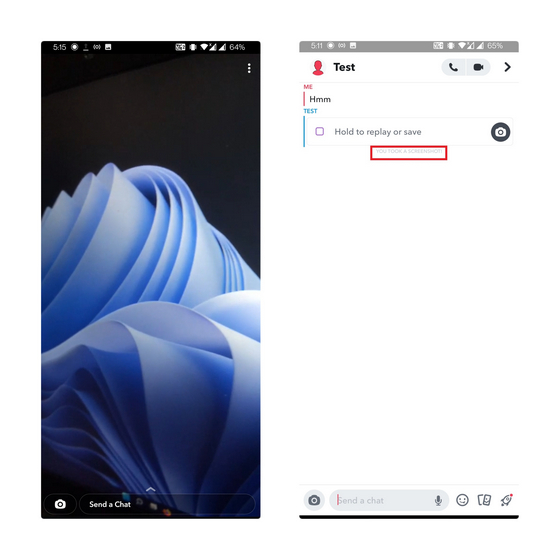
Should you opt to proceed despite the potential consequences, the procedure involves initiating screen recording just before accessing the Snapchat video sent by another user. It’s important to recognize that Snapchat will probably issue a notification to the sender in such instances. Please be aware that attempting this workaround carries inherent risks; exercise caution if you choose to proceed.
FAQs:
Can you save other people’s Snap videos?
Snapchat lacks a built-in method to directly download videos from other users. However, you can ask the sender to share looping videos or use a screen recording to capture others’ videos. For looping videos, Snapchat offers an option to save them directly to your camera roll.
Can you save Snapchat videos without them knowing?
Generally, Snapchat alerts the sender if you screen-record the video they sent. Consequently, this action carries potential risks, and you should proceed with caution. We strongly advise against recording and saving Snapchat videos from others.
How to save a Snapchat video someone sent you?
If a recipient sends you a video without an expiration timer, you can safeguard it by long-pressing the video and selecting “Save in Chat.” This action makes the video accessible within the conversation window. Subsequently, you can reapply a long press on the video and choose “Save to Camera Roll.”
Can you use Airplane Mode to secretly save Snapchat videos?
Previously, you could activate Airplane mode on your iPhone or Android device and capture a screenshot of the chat window as a workaround for secretly saving Snaps. However, Snapchat has since patched this loophole. The use of Airplane mode to covertly save videos or screenshots of chats is no longer viable. Snapchat will promptly notify the user as soon as they reconnect to the internet.

June 9, 2026

June 9, 2026

June 9, 2026

June 9, 2026

June 9, 2026