
YouTube Creator Studio, officially called YouTube Studio, is the free dashboard at studio.youtube.com where you upload videos, manage your library, answer comments, read analytics and check monetization. This guide walks you through five steps to get started, then covers tips for visibility, engagement and earning.
Great videos are only half the job. The other half is learning what viewers do after they press play, and Studio is where that data lives.
Pair that data with a clear social media plan, and every upload teaches you something about the next one.
Below you’ll find where each tool sits, what to check first, and which Partner Program rules apply today.
What is YouTube Creator Studio?
YouTube Studio, long known as Creator Studio, is the control center of your channel. It’s where you upload and manage videos, respond to comments, analyze performance and turn on monetization.
A YouTube Studio mobile app covers the basics when you’re away from a computer. The five steps below use the desktop version.
5 Essential Steps to Get Started With YouTube Creator Studio
Studio has a lot of menus, and the labels have changed over the years. These five steps cover what matters first.
Step 1: Navigate to YouTube Studio
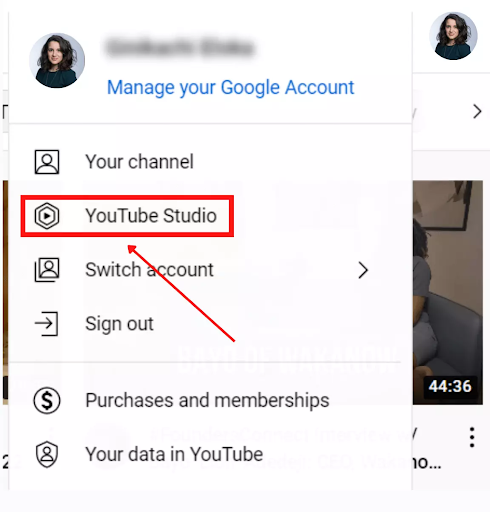
- Go to studio.youtube.com and sign in
- Click on your profile picture in the top right corner
- Select “YouTube Studio” from the drop-down menu
- On the left-hand side of the screen, browse the tabs to navigate and get a feel of your studio.
Step 2: Explore Your Creator Dashboard
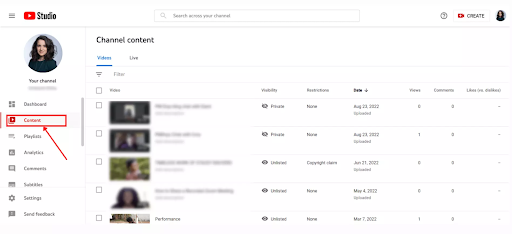
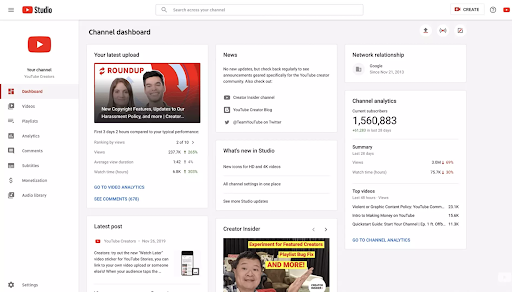
The dashboard gathers what you need to plan your next video: how your latest upload is doing, channel analytics for the last 28 days, and a summary of views, watch time and subscribers.
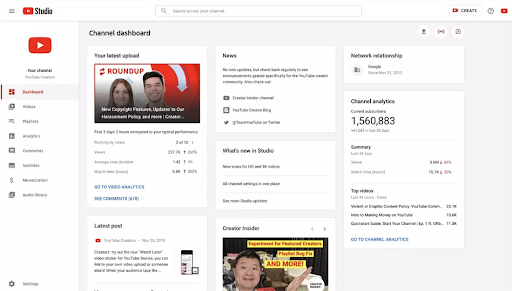
Look for the cards covering your latest content and your channel analytics. Card names can shift as YouTube updates Studio.
- Start with how your most recent video is performing
- Check recent comments you haven’t responded to
- Review personalized suggestions on best practices to grow your channel
- Check notifications for monetization issues or copyright claims
- Watch the latest updates from YouTube to learn what’s new on Creator Studio.
Step 3: Manage Your Content
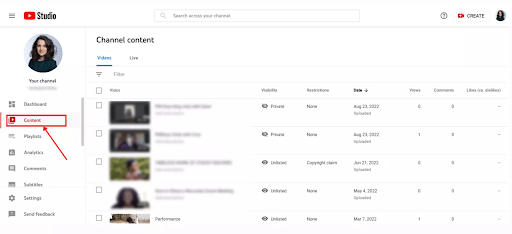
Click “Content” in the left menu to see every video, Short and live stream, with a snapshot of views, comments and likes. Use the tabs at the top of that page to switch between formats.
Playlists sit in the same Content area, in their own tab. A playlist groups videos on one topic your audience cares about.
Videos watched inside a playlist play one after another, so a viewer who finishes one is offered the next. That can lift the time people spend on your channel.
Step 4: Monitor the Performance of Your Channel and Videos
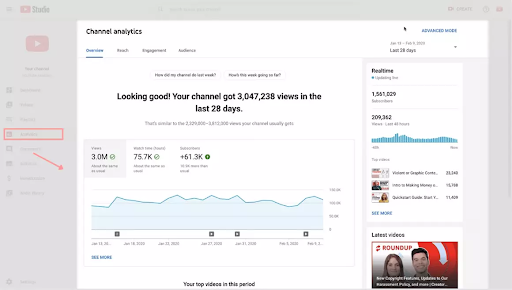
Open “Analytics” in the left menu for video metrics and reports. The Overview, Content, Audience and Revenue tabs answer different questions.
Analytics shows what works so you can repeat it. Watch time, average view duration and the click-through rate of your thumbnails and titles tell you more than raw view counts.
Step 5: Review Your Monetization Tab
Once you’re accepted to the YouTube Partner Program, you can earn from ads, channel memberships and other features such as a merch shelf, depending on your eligibility.
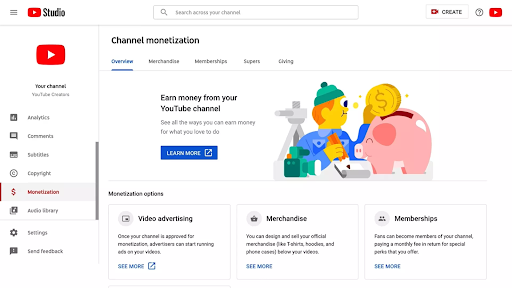
For ad revenue, YouTube’s Partner Program currently requires that you:
- Have 1,000 subscribers or more
- Have 4,000 public watch hours in the last 12 months, or 10 million public Shorts views in the last 90 days
- Live in a country or region where the program is available
- Link an AdSense account
- Have no active Community Guidelines strikes
- Turn on 2-step verification for your Google account
After approval, the monetization settings sit in Studio’s “Earn” area, where you manage ads, memberships and shopping features. YouTube also offers an earlier tier with lower thresholds that unlocks fan funding but not ad revenue. Check YouTube’s Partner Program help page for the current thresholds.
Tips to Improve Video Performance from YouTube Creator Studio
Once a video is uploaded, you can edit it in Studio to help the right viewers find it.
Tips to Increase Visibility
Open any video from the “Content” tab to edit its title, description, thumbnail and other details. Small edits here often make the biggest difference.
Use these tips to make your videos easier to find:
- Write clear titles with the keywords your audience searches for, put the important words first, and keep them under about 70 characters so they don’t get cut off
- Write descriptions that explain what the video covers, with the main topic in the first lines
- Design thumbnails that support the title instead of repeating it, because a strong image earns the click
- Add tags only for common misspellings of your topic. YouTube treats them as a minor signal next to titles, thumbnails and descriptions.
Tips to Boost Engagement
Views mean little if nobody watches to the end or responds. Playlists are one of the simplest tools Studio gives you for that.
- Create playlists that play in sequence to increase watch time
- Hook viewers in the first 10 seconds. Treat them as a mini trailer: show and tell people why they should keep watching.
- Keep each video as long as the topic needs and no longer, and add captions or subtitles so more viewers can follow along
- Add cards and end screens that point to related videos on your channel
- Ask viewers for their opinions and reply to early comments, since fast replies encourage more conversation
- Collaborate with other channels, especially creators who have already mentioned you
Tips to Optimize for Monetization
The first step to earning on YouTube is joining the Partner Program. For ad revenue, YouTube’s help pages list 1,000 subscribers plus 4,000 public watch hours in 12 months, or 10 million public Shorts views in 90 days. After approval, you choose how each video earns.
- Open YouTube Studio and click the “Content” tab
- Click the video you want to monetize to open its details
- Open that video’s monetization settings and choose the ad formats you want to show
Note: Besides ads, you can earn through affiliate links and brand sponsorships. If a video includes paid promotion, tick the paid-promotion disclosure in Studio’s video details and say so in the video. Keep your income streams separate from the start so bookkeeping stays simple as they grow.
Your first week in YouTube Studio
Open the Analytics tab and note your watch time and average view duration for your last five videos. Then pick the weakest one and rewrite its title and thumbnail from the Content tab.
Check back in a week to see whether click-through and watch time moved. That small loop of review, edit and recheck is how Studio pays off over time.
Frequently asked questions
What is the best way to grow my YouTube channel?
Consistency matters most. You don’t need to post daily: once a week or twice a month works if viewers know when to expect you.
Write the schedule into a social media plan so uploads and promotion don’t slip.
Add clear titles, custom thumbnails and keywords your audience actually searches for to earn more views from YouTube search.
How do I grow my YouTube channel from 0 to 1000?
To reach 1,000 subscribers on YouTube, publish useful videos on a focused topic, use clear thumbnails, post on a steady schedule, and ask viewers to subscribe.
Study the top videos in your niche to see which topics and formats draw views, then make your own take on them with your own angle and keyword research. Never copy another creator’s work.
Verify your channel to unlock features like custom thumbnails, and promote each video on other platforms right after you publish. End with a call to action and reply to comments to build a community.
How do YouTube videos go viral?
A YouTube video goes viral when it reaches a very large audience in a short time, usually because many people share it. Relatable, funny or surprising videos spread most easily.
No format guarantees it, and viral reach isn’t a plan. Steady, searchable videos usually build a channel more reliably.
You don’t need many subscribers to get a video widely seen, but clear titles and thumbnails help it reach people outside your audience.
Where can I promote my YouTube video?
Promote your video on the other platforms where your audience already is, such as TikTok, X and Instagram. A short clip made as an Instagram Reel can send viewers to the full video.
You can also run YouTube ads to reach a targeted audience. Niche subreddits and Quora threads can work too, as long as you follow each community’s rules on self-promotion.
How long does it take for a YouTube channel to grow?
There’s no fixed timeline. Growth depends on your niche, how often you publish, how well your videos hold attention and whether you promote them.
A useful benchmark is the Partner Program bar of 1,000 subscribers and 4,000 public watch hours. Channels with an existing audience on other platforms often reach it sooner, but quality and regular uploads matter more than any timetable.
Add SocialAtoZ as a preferred source
See us more often in your Google results.