
AI Photo Restoration: 5 Tools and the Damage Each One Fixes
Compare 5 AI photo restoration tools by the damage they fix: scratches, fading, blur and faces. Who each fits, how pricing works, where AI invents detail.

The right AI photo restoration tool depends on what’s wrong with the photo. Adobe Photoshop handles tears and missing pieces, MyHeritage suits family archives, Remini fixes blurry faces on a phone, VanceAI removes scratches in a browser, and AVCLabs Photo Enhancer AI batch-processes scans on your own computer. Scan well first, and check every face afterward.
How These AI Photo Restoration Tools Were Chosen
Each of the five AI photo restoration tools here has a public product page and a published pricing model. Each one also has a feature built for old-photo damage, such as scratches, fading, blur or faces. The descriptions come from vendor documentation, not hands-on testing.
Three questions decide which one fits your photo:
- What’s damaged: scratches, fading, blur, faces or missing pieces?
- Where the file goes: a vendor’s cloud or your own computer?
- How many photos: one for a birthday card, or a whole shoebox?
How the figures were gathered: this page gives each tool’s pricing basis (subscription, credits or license) from the vendor’s own pages, not dollar amounts. Photo app plans change often, so check the vendor’s pricing page before you buy.
Five Tools, Each Matched to One Kind of Damage
Each tool below leads on one kind of damage, so start with the heading that matches your photo. None of them is the best at everything.
Adobe Photoshop: Best for Tears and Missing Pieces
Adobe Photoshop pairs manual repair tools with AI ones: the Photo Restoration and Colorize Neural Filters, Content-Aware Fill and Generative Fill. It’s the only tool here that lets you rebuild a torn corner by hand when the AI gets it wrong.
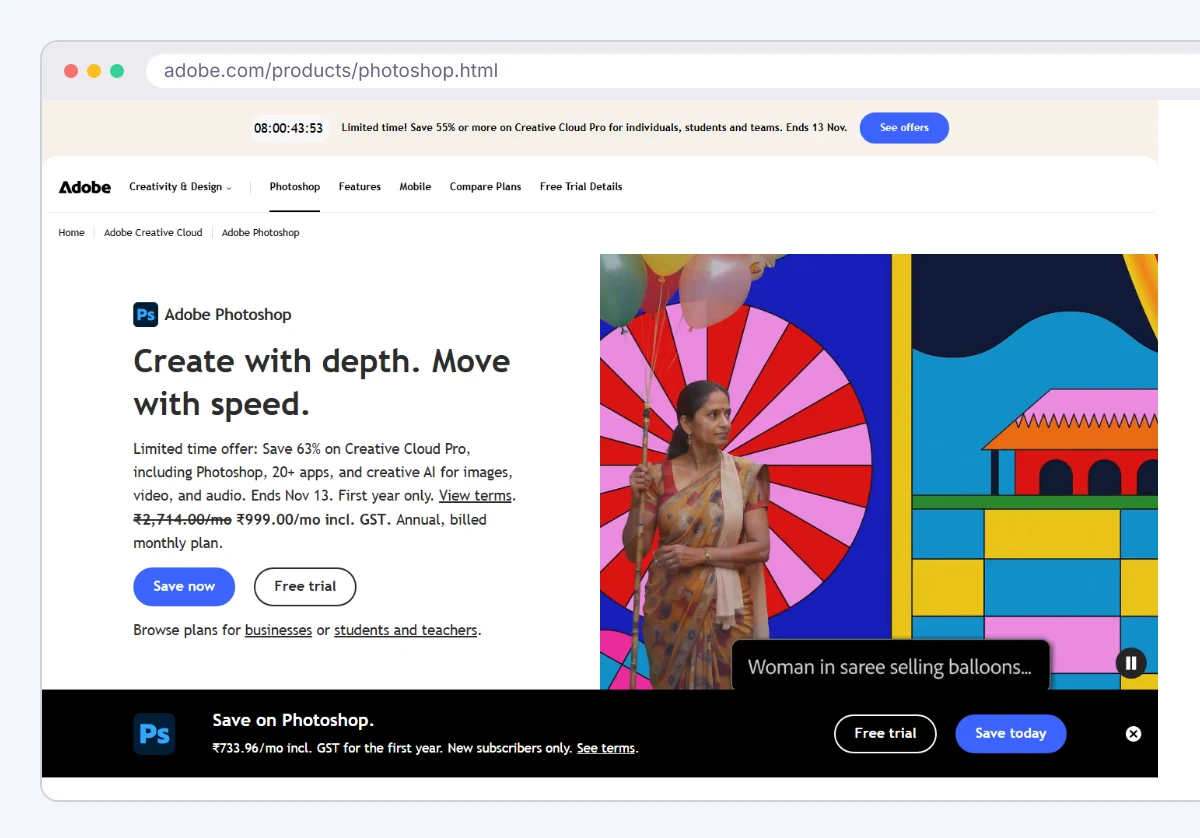
It suits anyone restoring a photo that’s worth an hour of work, and anyone taking paid restoration jobs. Pricing is a Creative Cloud subscription, billed monthly or on an annual plan; check Adobe’s pricing page for current plans. Generative Fill runs in Adobe’s cloud and uses generative credits.
The limit is skill. Photoshop won’t fix a photo in one click, and the Photo Restoration filter has carried a beta label in the past, so check Adobe’s documentation for its current status.
MyHeritage: Best for Family Archives
MyHeritage, the genealogy platform, offers photo tools for enhancing blurry faces, colorizing black-and-white prints, and repairing scratches and creases; check MyHeritage for the current tool names. Restored photos sit next to your family tree, so each one stays tied to the right relative.

It suits family historians working through boxes of prints. MyHeritage’s own pages set out its free limits and which paid plan covers the photo tools, so check them before you start.
Free results may be limited, so check MyHeritage for its current watermark policy. And the enhancer sharpens faces far more than backgrounds, so clothing and scenery stay soft.
Remini: Best for a Quick Fix on Your Phone
Remini, from Bending Spoons, is a mobile-first app that sharpens blurry and low-resolution faces in seconds. You photograph or upload the print, tap once, and share the result.

It suits one photo for a text, a post or a card. Remini’s app store listing sets out its free tier and subscription terms. Check how to cancel before you start a trial, since app subscriptions renew automatically.
Remini’s face reconstruction is aggressive. It can change a likeness enough that relatives notice, and it does little for torn or creased paper.
VanceAI Photo Restorer: Best for Scratches in a Browser
VanceAI Photo Restorer is a web tool that removes scratches, spots and crease lines from scanned prints. The same platform has a colorizer, an upscaler and a denoiser.

It suits an occasional user on any computer who doesn’t want to install software. Pricing runs on credits; check VanceAI’s pricing page for free credits and current plans or packs.
Every tool run spends credits. A full restore that repairs, colorizes and upscales one photo uses several, so price the whole job, not one step.
AVCLabs Photo Enhancer AI: Best for Private Batches
AVCLabs Photo Enhancer AI is a desktop app for Windows and macOS that upscales, denoises, sharpens faces and colorizes. It processes whole folders on your own computer, so photos never leave it.

It suits anyone with hundreds of scans who’d rather not upload family photos to a server. Pricing is a subscription or a perpetual license, with a watermarked free trial.
It needs a capable graphics card to run at a usable speed. It’s an enhancer first, so deep scratches and tears may need another tool.
Where AI Restoration Invents Detail
AI photo restoration doesn’t recover lost detail. It predicts it. Face restoration models rebuild eyes, teeth and skin from patterns learned on other faces, so a sharp result isn’t proof of an accurate one.
Small faces in group shots suffer most, because the model has almost nothing to work from. Compare each face against the original scan at full zoom: eye shape, teeth, ears, glasses frames and hairline. If a face looks sharper and less familiar, lower the strength setting or skip face enhancement for that photo.
Generative face models also power the apps in our list of AI face swap tools, which is why a heavy restore can drift toward a stranger. For family history, a slightly soft but true face beats a crisp invented one.
Scan the Print Properly First
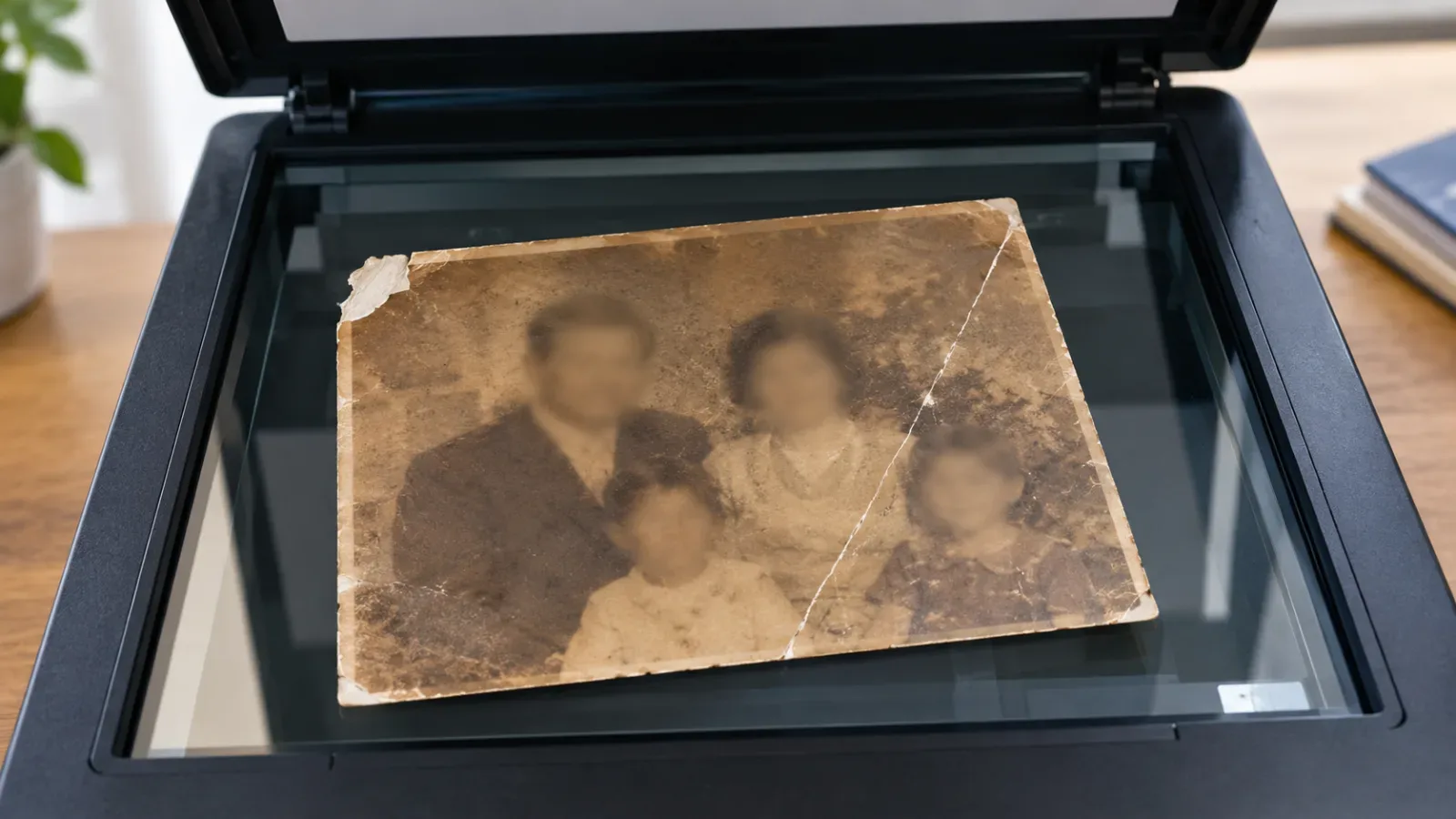
A clean scan sets the ceiling for every tool on this list. Scan on a flatbed at 600 dpi or higher for small prints, a common archival rule of thumb, and save a TIFF or PNG master you never edit.
Phone photos of prints add glare and skewed edges, so shoot in shade with a scanning app that flattens perspective. Don’t sharpen or filter before the AI step, because tools read those halos as detail. Run every restore on a copy.
Which Tool Fits Your Photos?
Your situation decides the tool faster than any feature list. Start from what you have and what you’ll do with the result.
Match your case to one of these:
- Torn, creased or missing pieces: Adobe Photoshop.
- A shoebox of prints for family history: MyHeritage.
- One blurry photo to share from your phone: Remini.
- Occasional scratches, no install: VanceAI Photo Restorer.
- Hundreds of private scans: AVCLabs Photo Enhancer AI.
- Python skills and no budget: GFPGAN, an open-source face model from Tencent ARC.
GFPGAN only restores faces and takes setup, but it’s free to try and runs on your own machine; check its project page for the license and maintenance status.
How the 5 Tools Compare on Platform and Pricing
| Tool | Runs on | Photos processed | Pricing basis |
|---|---|---|---|
| Adobe Photoshop | Windows, macOS, iPad, web | Locally, Generative Fill in cloud | Creative Cloud subscription |
| MyHeritage | Web, iOS, Android | Vendor’s cloud | Free uses, then subscription |
| Remini | iOS, Android, web | Vendor’s cloud | Free tier, then subscription |
| VanceAI Photo Restorer | Web browser | Vendor’s cloud | Credits |
| AVCLabs Photo Enhancer AI | Windows, macOS | Your own computer | Subscription or perpetual license |
Restore One Test Photo Before You Pay
Pick your most damaged print and one ordinary one, scan both, and run them through the free tiers of two tools from this list. Compare the faces at full zoom against the originals, and pay only for the tool whose results still look like the people you know.
If you also want tools that create new images rather than repair old ones, see our roundup of AI tools for content creation.
Frequently Asked Questions
Partly. Most tools here give a few free restorations or a trial, often with watermarks or smaller exports, so check each vendor for its current limits. GFPGAN is free if you can run it yourself.
AI can paint a plausible replacement, not the real one. Photoshop’s Generative Fill will fill a torn corner with something that fits, but it’s an invention. Note which photos were reconstructed if they go into a family archive.
No. Colorization models guess colors from patterns, so a uniform, a dress or a car’s paint can come out wrong. Treat colorized versions as illustrations and keep the black-and-white scan as the record.
Online tools upload your image to the vendor’s servers, and retention terms differ by vendor. Read each privacy policy before uploading private family photos, or use a desktop app that processes files on your own computer.
Add SocialAtoZ as a preferred source
See us more often in your Google results.