
The install itself almost never goes wrong.
You click through four screens, it finishes, and the program opens. What you agreed to on the way past is the part nobody reads.
The risk sits either side of the install: where the file came from, and what the program keeps doing once it’s running. Knowing how to install software safely is mostly knowing what to look at before and after those four screens.
Key Takeaways
- The download source decides more about your safety than any setting does.
- A default install accepts extras you were never asked about directly.
- What a program does after setup outlasts anything you clicked during it.
The Safest Install Is the One You Skip
Ask what this software is for before asking whether it’s safe.
A surprising share of installs solve a problem once. A file converter you need for one document, a viewer for one attachment, a utility for one afternoon. Each leaves a permanent footprint for a temporary need.
Check three things first. Whether a web version does the job without installing anything, whether software you already own covers it, and whether the task is rare enough to handle another way.
Nothing you don’t install can bundle anything, start at boot, or fail to uninstall cleanly. It’s the only step on this page with no downside.
Start With Where It Came From
Most bad installs trace back to the download rather than the setup.
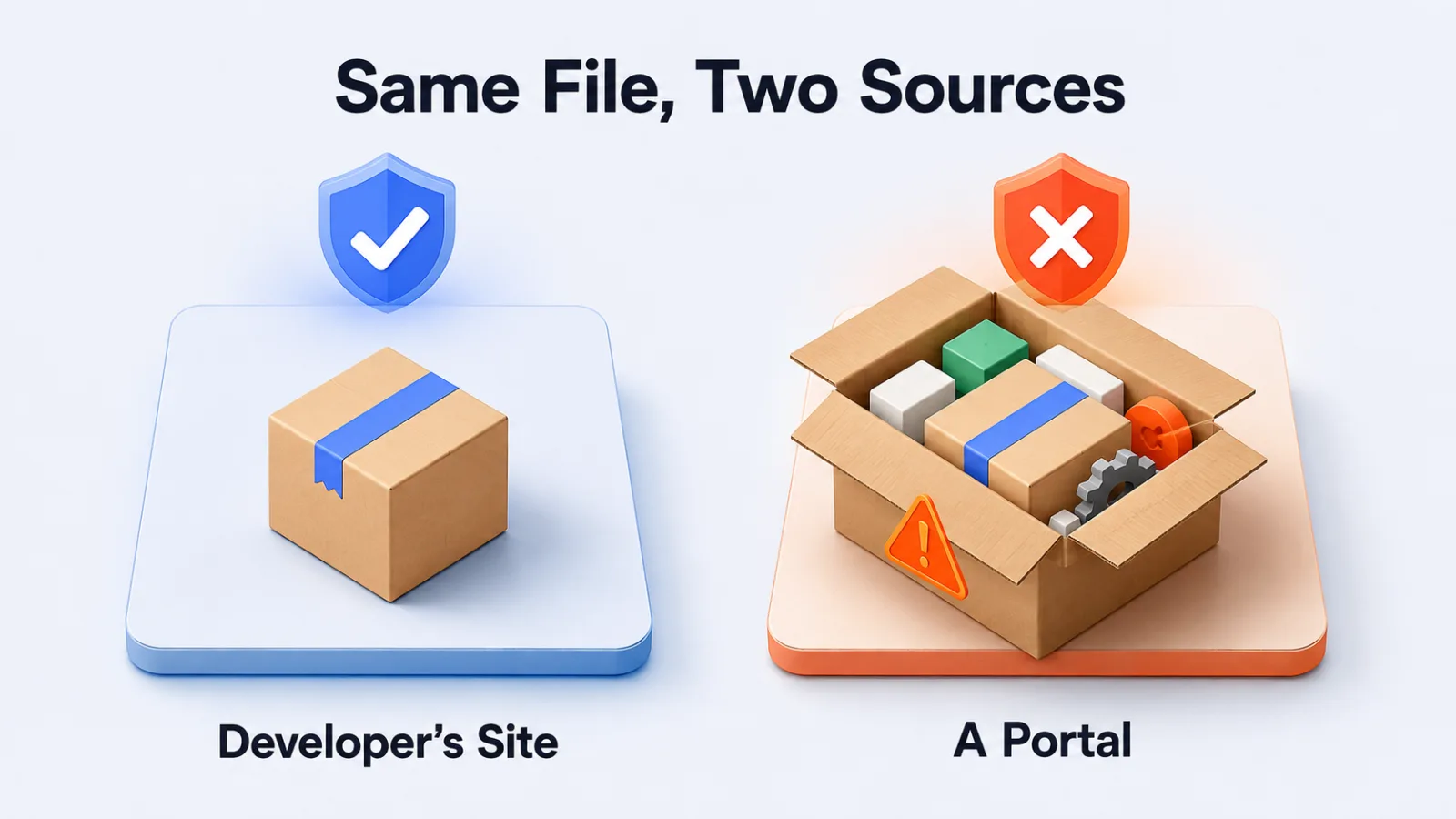
Go to the developer’s own site, and reach it by typing the address rather than clicking the first search result. Paid placements and lookalike domains both sit above the real thing often enough to matter.
Download portals are the other common source of trouble. They wrap the real installer inside their own downloader, and that wrapper is where bundled extras come from.
Which Sources Earn the Trust
Four are reliable, and they’re reliable for the same reason.
The developer’s own site, your operating system’s app store, a package manager like winget or Homebrew, and the vendor portal your workplace runs. Each one delivers the publisher’s own signed build with nothing wrapped around it.
Aggregator sites are the category to treat carefully. Some mirror the original file untouched and others repackage it, and the two look identical from the outside.
Confirm What Landed
Three checks take seconds between the download finishing and the file opening.
The file size should roughly match what the site advertised. The publisher name your operating system shows should match the developer, not a company you’ve never heard of.
Then scan it. Running the file past antivirus software is checking your assumption about where it came from rather than doubting the developer.
Read the Installer Instead of Clicking Next
Choose custom or advanced every time it’s offered.
The express option accepts every default for you, and the defaults are chosen by whoever wants something installed. Custom shows the same screens with the boxes visible.
What the Pre-Ticked Boxes Usually Are
Four appear often enough to expect them.
A second unrelated program, a browser toolbar or extension, a changed default search engine or home page, and permission to start automatically when the computer does. Each is a separate box, and each is ticked before you arrive.
The license screen is worth a moment too, because what you’re agreeing to differs by model. Whether the software is free to use, free to trial or free to modify is covered in types of software licenses.
What It Keeps Doing After
This is the part the setup screens don’t show you.
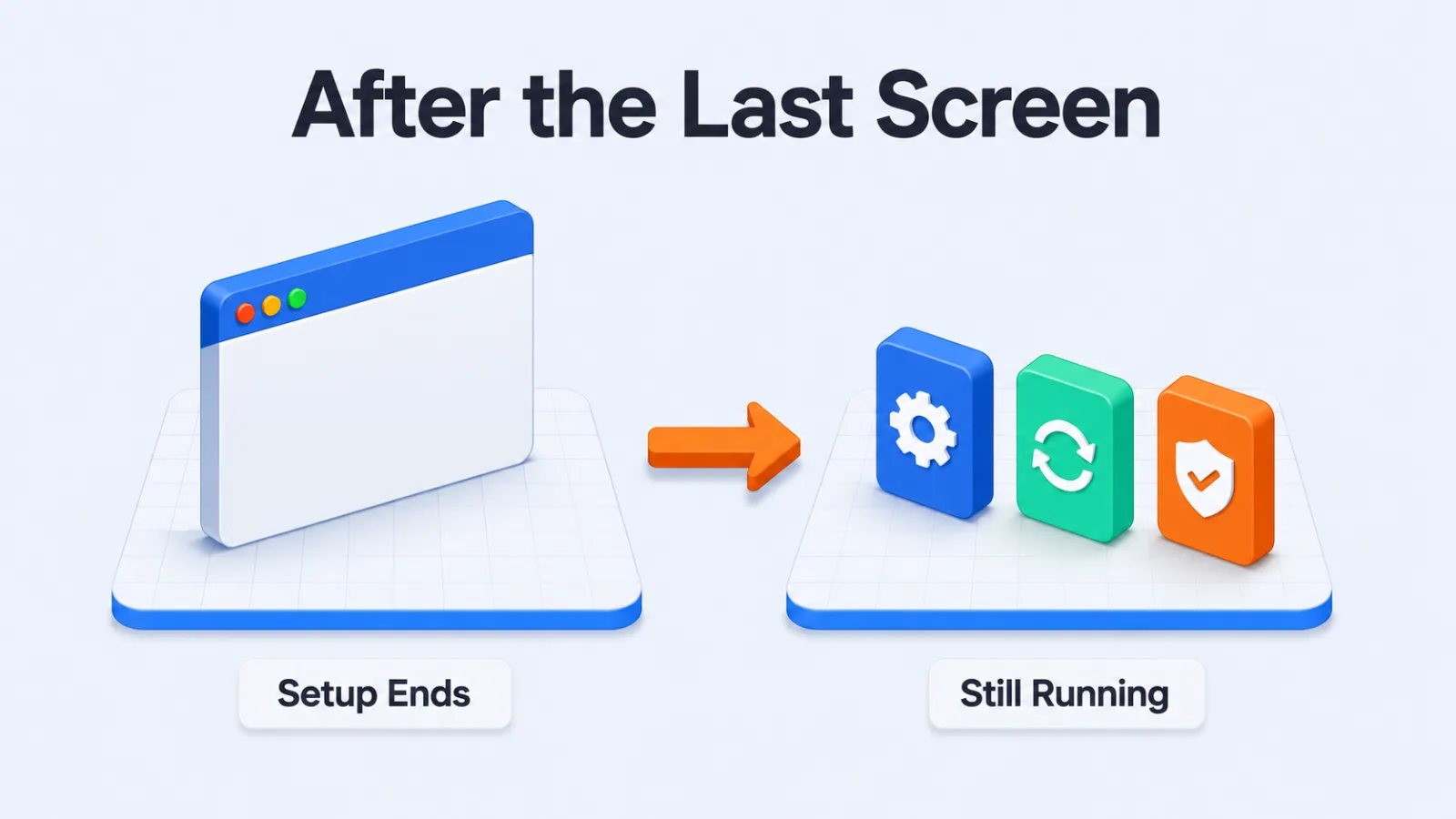
Plenty of programs install a background updater that runs whether or not the program is open. Some add scheduled tasks, some add a service that starts with the machine, and some switch on usage reporting by default.
None of that is necessarily wrong. It’s simply invisible, and it accumulates: a machine that feels slow at startup is usually carrying a dozen of these from software installed months ago.
How to See What It Added
To see it, open your startup list after installing something new rather than weeks later.
Both Windows and macOS show what launches at boot, and the entry will be freshly added and easy to recognize. Turn off what you don’t need there rather than hunting through the program’s own settings.
Check How It Leaves Before You Let It In
Uninstalling rarely removes everything.
Settings folders, scheduled tasks and background services routinely survive the uninstaller, which is why a machine that has trialed a dozen tools runs slower than one that hasn’t.
When you’re evaluating rather than committing, make the install reversible instead. A restore point before you start, or installing on a machine that doesn’t matter, beats trying to judge the software correctly in advance.
If You Already Installed Something You Regret
Work outward from the program rather than starting with a scan.
Uninstall it first, then check the three places its extras hide: your startup list, your browser’s extension list, and your default search engine and home page. Installers change all three and uninstallers seldom change them back.
Check what else arrived the same day. Bundled software installs alongside rather than inside, so it appears in your program list with its own name and its own install date.
Then scan, and treat a clean result as one piece of evidence rather than an all-clear.
Extensions and Phone Apps Are a Different Transaction
Neither one installs a file you can scan.
What they install is a permission. A browser extension allowed to read and change data on every site you visit holds more access than most desktop programs ask for. It’s granted with one click and no setup screens.
Read the permission list on those the way you’d read the pre-ticked boxes on an installer. It is the same decision arriving in a different shape.
Then Keep It Updated
Installing something is the start of a relationship rather than the end of a task.
Most successful attacks use a hole that was already fixed, so the gap between a fix shipping and you installing it is the exposure. Turn on automatic updates where the software offers them, and handle the rest deliberately, which is what patch management means at any scale.
A Short Pre-Install Checklist
- Did this come from the developer’s own site, reached by typing the address?
- Does the publisher name on the file match the developer?
- Has it been scanned?
- Did you choose custom, and read every screen with a checkbox?
- Did you check the startup list afterwards?
- Could you undo this install if you needed to?
That runs to about two minutes, and it covers the decisions the four setup screens hide.
Questions People Ask About Installing Software
Is it safe to download software from a download portal?
Usually less safe than the developer’s own site. Portals wrap the real installer in their own downloader, and that wrapper is where bundled extras come from. Go to the source when the source exists.
Should you always choose custom installation?
Yes, because the express option accepts every default on your behalf. Custom shows you the same screens with the boxes visible, and it costs about twenty extra seconds.
Do you need to scan a file from a well-known developer?
It costs nothing and it catches the case that matters, which is a download that did not come from where you thought. The scan is checking your assumption about the source, not doubting the developer.
Does uninstalling remove everything?
Rarely. Settings folders, scheduled tasks and background services routinely survive, which is why trialing ten tools leaves a machine slower than it started.
What should you do before installing something you are unsure about?
Create a restore point, or install it somewhere that does not matter. Being able to undo the install beats trying to judge the software correctly in advance.
The Careful Part Isn’t the Clicking
Next time you install something, do one thing differently and open your startup list straight afterwards.
What you find there is the honest record of what you agreed to, and it’s usually more than you remember approving.
Getting the download right and knowing what stayed behind covers almost everything that goes wrong. The four screens in between matter far less than they appear to.
Add SocialAtoZ as a preferred source
See us more often in your Google results.