8 Free Screen Share Software Tools, and Their Real Limits
Free screen share software compared: 8 meeting and remote-control tools, their free-plan time caps, license rules for business use and security trade-offs.

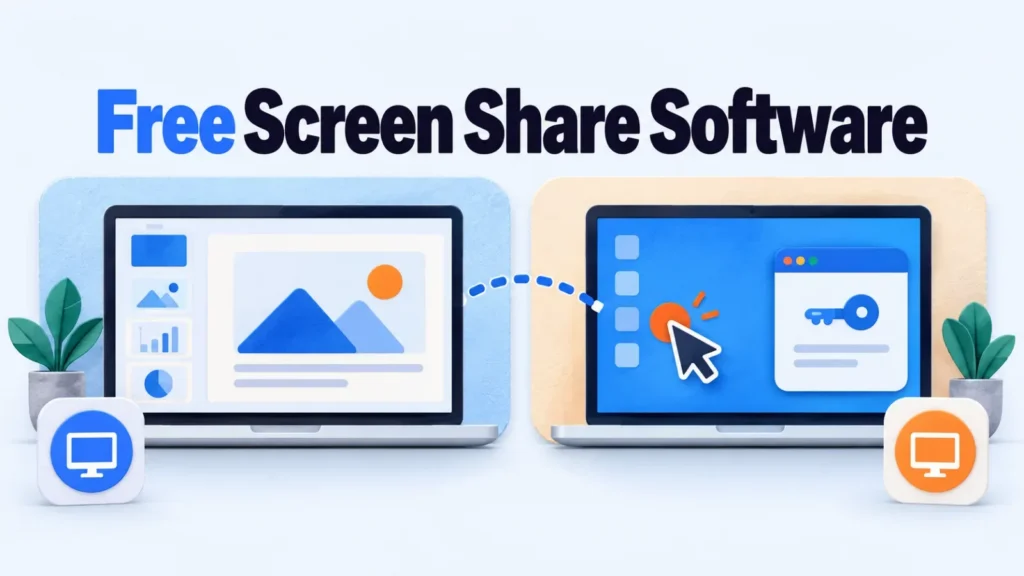
Free screen share software splits into two jobs: showing your screen in a meeting (Google Meet, Zoom, Microsoft Teams, Jitsi Meet) and controlling another computer (Chrome Remote Desktop, RustDesk, TeamViewer, AnyDesk). Pick the type first, then check the free plan’s time cap and license.
The 8 tools below were chosen from documented facts: a free tier that exists, screen sharing that works on it, and a clear rule on business use. No tool was tested hands-on for this page, and no placement is paid.
Do you need meeting screen share or remote control?
Meeting screen share broadcasts your screen to viewers who can watch but not touch. Remote-control software lets one person operate another person’s computer, which is what IT support and helping a client set something up need.
Most free meeting apps can share a screen. Far fewer free tools allow remote control for business use without a paid license.
Presenting to a group
A meeting app fits when several people watch one screen: a sales demo, a sprint review, a training walkthrough. The free-plan limit that bites here is the meeting length, not the screen share itself.
Supporting someone’s computer
Remote-control software is the better pick when you need to:
- Fix settings on a colleague’s laptop
- Install software on a remote device
- Walk a client through a setup by driving it yourself
- Reach your own office computer from home
A meeting app with screen share is the better pick when you need to:
- Present slides or a product demo to a group
- Review a document together on a call
- Record a walkthrough for people who missed it
- Let viewers join from a browser link
Free screen sharing tools compared
| Tool | Type | Free limit | Remote control | Business use on free | Best for | |
| Google Meet | Meeting | Time limits apply to group calls on the free plan | No | €€ | Yes | Quick browser calls |
| Zoom Workplace Basic | Meeting | Time limit per meeting on the free plan | Request control | € | Yes | Short client demos |
| Microsoft Teams (free) | Meeting | Time limit on free group calls | Depends on the plan | €€€ | Yes | Microsoft 365 users |
| Jitsi Meet | Meeting, open source | Joining may not need an account, check the official site | No | € | Yes | Self-hosted calls |
| Chrome Remote Desktop | Remote access | Free, Chrome or app required | Yes | €€€€ | Yes | Light IT support |
| RustDesk | Remote access, open source | Free self-hosted server option | Yes | € | Yes | Teams owning their data |
| TeamViewer (free) | Remote access | Personal use only, check the vendor’s terms | Yes | € | No | Family tech help |
| AnyDesk (free) | Remote access | Personal use only, check the vendor’s terms | Yes | €€€ | No | Personal remote access |
The 8 free tools, one by one
Each free screen sharing tool gets the same fields: what the free plan gives you, who it suits, strengths and limits. Meeting apps come first, remote-control tools second.
Google Meet
- Free plan: group calls and 1:1 calls have different time limits, see Google Meet’s official plan page for current figures
- Type: browser-based video meetings
Google Meet runs in the browser, so nobody installs anything to see your screen. You can share a whole screen, one window or a single Chrome tab, and the tab option carries that tab’s audio.
Any personal Google account can host. Guests without one can join from the link once you admit them.
Who Google Meet suits
Google Meet suits teams already on Google Workspace and anyone who sends quick links to outside guests. Skip it for long workshops on the free plan: the group cap cuts the call mid-session.
Strengths:
- No install for hosts or viewers
- Tab sharing with audio
- Business use allowed on a free account
Limits:
- Group meetings stop at the free time cap
- No remote control of a viewer’s computer
Zoom Workplace Basic
- Free plan: meetings have a time cap and a participant limit, see Zoom’s official pricing page for current figures
- Type: video meetings with desktop app

 Zoom Workplace Basic is Zoom’s free tier. Screen sharing works for every participant the host allows. Remote control options depend on the plan and settings, so check Zoom’s documentation.
The desktop app gives the smoothest share. Browser joining exists but feels more limited.
Who Zoom Workplace Basic suits
Zoom suits short client demos where the other side already has Zoom installed. If your calls run past 40 minutes, plan for a restart or a paid plan. Recordings pair well with speech-to-text transcription tools for notes.
Strengths:
- Familiar to most clients
- Share control between participants
- Local recording on the free plan
Limits:
- The shortest free time cap on this list
- Best experience needs the app installed
Microsoft Teams (free)
- Free plan: group meetings are free with time and participant limits; check Microsoft’s current Teams free plan limits on its official site
- Type: chat plus video meetings
 Microsoft Teams (free) adds meetings and screen sharing to a chat workspace tied to a personal Microsoft account. It’s a separate product from Teams in Microsoft 365 business plans, which keeps confusing buyers.
Sharing a screen or a window works in the app and the browser.
Who Microsoft Teams (free) suits
The free Teams tier suits small groups who want chat and calls in one place. Companies already paying for Microsoft 365 should use the Teams they own, which carries their admin and security settings.
Strengths:
- Chat, files and calls together
- Joinable from a browser
- 100-person meetings on the free tier
Limits:
- Free and business Teams are easy to mix up
- Group calls stop at the free cap
Jitsi Meet
- Free plan: free on meet.jit.si (sign-in requirements can change, so check the current rules on the Jitsi site), or self-hosted at no license cost
- Type: open-source video meetings
Jitsi Meet is open-source meeting software. You can use the public meet.jit.si service or run it on your own server, which keeps calls inside infrastructure you control.
Screen sharing runs in the browser, and an end-to-end encryption option is available in some setups, so check the Jitsi documentation for current support and limitations.
Who Jitsi Meet suits
Jitsi suits teams with a sysadmin who wants no per-user licensing and full control of where meeting data lives. Without that person, a hosted meeting app is less work.
Strengths:
- Self-hostable with no license fee
- No time cap when self-hosted
- Browser-based joining
Limits:
- Self-hosting means you own updates and uptime
- Large calls need a well-sized server
Chrome Remote Desktop
- Free plan: free, no paid tier
- Type: remote access and remote support
 Chrome Remote Desktop is Google’s free remote-access tool. For support, the person being helped generates a one-time access code and reads it to you; for your own machines, you set up a PIN for repeat access.
It needs Chrome or the host app on each computer, and a Google account.
Who Chrome Remote Desktop suits
Chrome Remote Desktop suits small teams doing occasional IT help without a help desk budget. For company-wide remote access to internal systems, a managed VPN such as Ivanti Connect Secure gives admins central control.
Strengths:
- Free for business use
- One-time codes for support sessions
- Works across Windows, macOS and Linux
Limits:
- No session logs or central admin console
- Basic file transfer only
RustDesk
- Free plan: open-source client, free self-hosted server; a paid tier with extra features also exists, so check the RustDesk site for current license and plan details
- Type: open-source remote access
RustDesk is an open-source remote-desktop tool. Its point is the self-hosted relay server: connections pass through hardware you run instead of a vendor’s cloud.
The client works like the commercial remote-access apps, with an ID and a password per device.
Who RustDesk suits
RustDesk suits IT teams that want remote control for business without a per-seat license and can host a small server. Teams without that skill should pick a managed tool.
Strengths:
- Business use without a license fee
- Traffic stays on your server
- Cross-platform clients
Limits:
- Security depends on how you run the server
- Admin features typically sit in a paid tier
TeamViewer (free)
- Free plan: personal, non-commercial use only
- Type: remote access and support
TeamViewer is one of the longest-running remote-support products, and its free license covers personal use. TeamViewer can flag sessions it judges commercial and restrict them.
That makes the free version a trap for small businesses: it works until it doesn’t.
Who TeamViewer (free) suits
The free TeamViewer license suits helping family members with their computers. For client or employee support, budget for a paid license (check TeamViewer’s site for current pricing) or use a tool that allows business use for free.
Strengths:
- Mature, widely known client
- Works across desktop and mobile
- Easy ID and password connection
Limits:
- Free license excludes business use
- Commercial-use flags can block sessions
AnyDesk (free)
- Free plan: personal use only; check AnyDesk’s current license terms on its official site
- Type: remote access
 AnyDesk is a lightweight remote-desktop app with a free license for personal use. Like TeamViewer, business use needs a paid plan (check AnyDesk’s site for current pricing).
Scammers often ask victims to install remote-access apps like this one, so never accept a session from someone who called you unprompted.
Who AnyDesk (free) suits
The free AnyDesk license suits reaching your own home computer or helping a relative. Businesses should treat it as a paid product.
Strengths:
- Small, fast client
- Unattended access to your own devices
- Cross-platform support
Limits:
- Free license excludes business use
- A common tool in support scams
How do you choose a free screen sharing tool?
Choosing a free screen sharing tool comes down to 4 checks: the license, the time cap, what viewers must install and the access settings. Run them in that order, because the license rules out more tools than any feature does.
Check the license before the feature list
 TeamViewer and AnyDesk are free only for personal use. If you support clients or employees, start with Chrome Remote Desktop or RustDesk, which allow business use without a fee.
Count the minutes you actually meet
Look at your last month of calls. If most group calls run past 40 minutes, Zoom’s free tier will interrupt you, and Google Meet or Teams fits better. Self-hosted Jitsi Meet has no cap at all.
Decide who installs what
Browser joining matters most with outside guests. Clients rarely install an app for one demo, so Google Meet and Jitsi Meet win there. Remote control always needs software on the computer being controlled.
Security settings that matter
Turn off unattended access you don’t use, require a password or one-time code, and share one window instead of the whole screen when you can. Teams building internal tools can apply the same habits across the secure software development life cycle.
When paying beats free
Pay once you need session logs, central user management or business remote control at scale. Free tools have none of these, and support work without logs is hard to audit.
Run one test call with your real setup this week
Pick one meeting app and one remote-control tool from the table, and run a test with a colleague on the devices you actually use. Share a single window, hand over control, and time how long the setup takes. That short test tells you more than any feature list. For paid options in the same space, browse the software category list.
Frequently asked questions
Can I share my screen without installing anything?
Yes, through a browser-based meeting app. Google Meet and Jitsi Meet let you share a screen, window or tab from Chrome, Edge or Firefox without an install. Remote control is different and always needs software on the controlled computer.
Is free screen sharing secure enough for client data?
Free screen sharing is secure enough when you share a single window, use meeting passcodes and close the session afterward. The bigger risk is showing the wrong window, so close notifications and unrelated tabs before you share.
Can someone control my computer during a screen share?
Not unless you grant it. Meeting apps only show your screen by default, and remote control needs your explicit approval or an access code you hand over.
Why does TeamViewer say I’m using it commercially?
TeamViewer’s free license covers personal use only, and the software can flag usage patterns it reads as business use. If that happens on legitimate personal use, contact TeamViewer support, and check its help centre for the current process to dispute the flag.
Which free tool works best on a phone?
Google Meet, Zoom and Microsoft Teams all have mobile apps that can share a phone screen in a meeting. Controlling a phone remotely is more limited, and many free remote-control tools treat mobile as view-only or a paid feature, so check each tool’s documentation for current mobile support.
Add SocialAtoZ as a preferred source
See us more often in your Google results.