
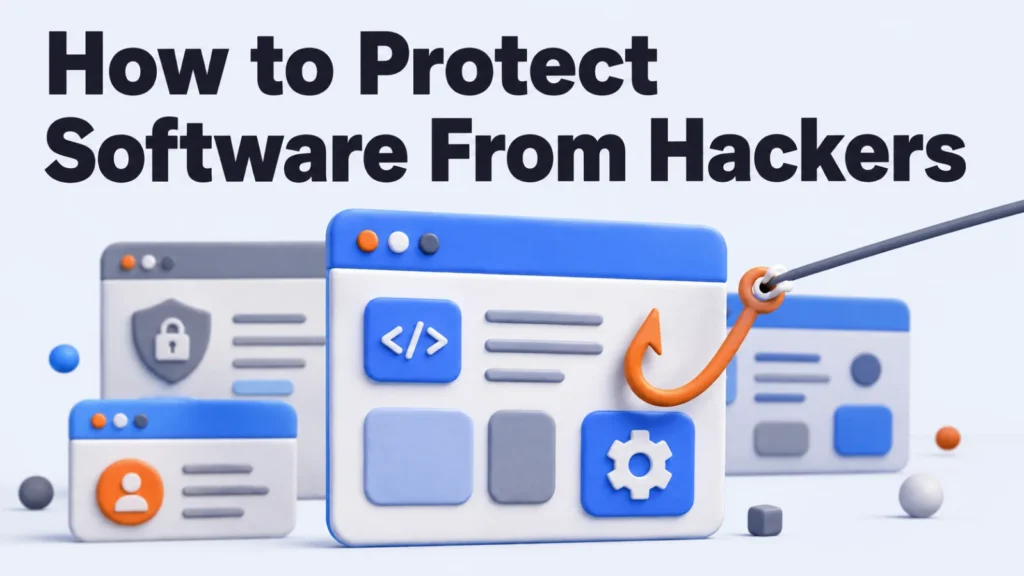
Search this question and you’ll get antivirus, a firewall and a reminder to pick a better password.
That advice guards the computer in front of you. Most of the software you use isn’t on it.
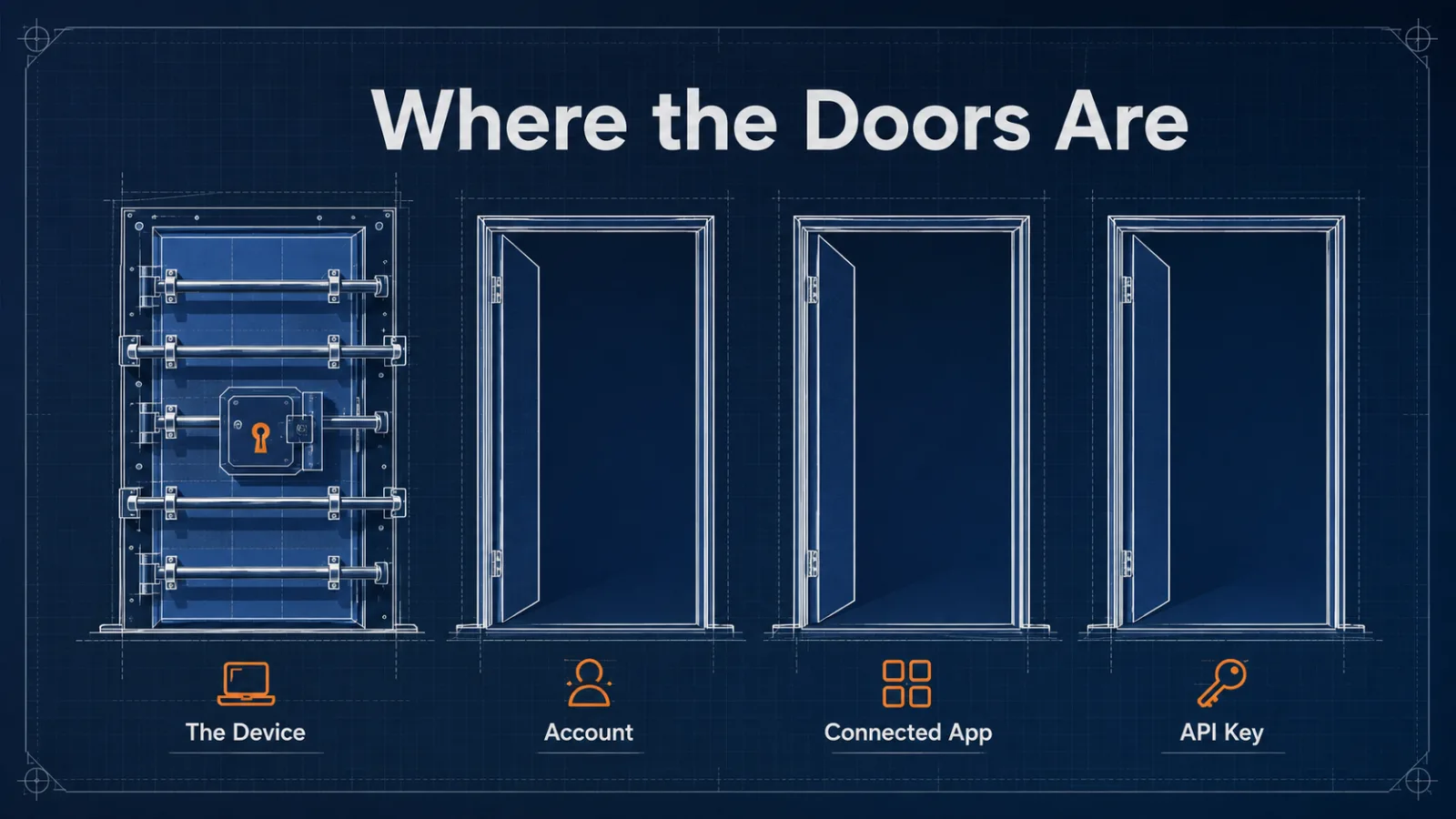
Your tools run on somebody else’s servers, and the way in is your account rather than your hard drive. Knowing how to protect software from hackers starts with the doors that exist.
Key Takeaways
- When software runs in a browser, the account is the perimeter.
- Connected apps and API keys keep their access long after you forget granting it.
- A vendor you rely on will be breached eventually, so limit what that costs you.
Why the Standard Advice Misses
It was written for a world where software arrived on a disc.
When programs lived on your machine, defending the machine defended the software. An intruder needed to reach your hardware to reach your work.
That stopped being the shape of the problem. Your documents, your customer list and your publishing tools now sit in accounts you reach through a browser. An attacker who signs in as you never comes near your device.
Endpoint tools still matter for what remains on the machine, and antivirus software is worth running. It simply defends a smaller area than it used to.
Where the Break-Ins Happen
You can trace most of it to six routes, and only two involve being tricked in the moment.
| Route in | What it reaches | What closes it |
|---|---|---|
| A reused password | Every account sharing it | Unique passwords in a manager |
| A convincing sign-in page | Your live session | Passkeys or an authenticator app |
| A connected third-party app | Your data, without your password | Reviewing granted access |
| A leaked API key | Anything that key is scoped to | Narrow scopes and rotation |
| A breach at your vendor | Whatever you uploaded | Uploading less in the first place |
| Someone who left | Sessions still signed in | Revoking access on the last day |
The last four keep working while you sleep. Nobody has to fool you twice, because the access was granted once and never withdrawn.
Lock the Account First
One change outranks everything else here.
Turn on a second sign-in factor everywhere that holds real value, starting with the email address your other accounts reset through. That inbox is the master key, and it deserves the strongest protection you have.
Not All Second Factors Are Equal
A passkey or a hardware key is the strongest, because it refuses to hand anything to a fake sign-in page.
An authenticator app comes next, generating codes on a device an attacker would have to hold. Text-message codes come last: a phone number can be moved to somebody else’s device by anyone who persuades your carrier.
Use a password manager for the rest. Unique passwords mean one breached service stays one breached service.
What a Fake Sign-In Looks Like Now
The obvious tells are gone.
A modern phishing page copies the real one exactly, because it loads the real one’s own images and stylesheets. Spelling mistakes stopped being the giveaway years ago.
Check the address bar before you type anything. Treat a sign-in screen you reached by clicking with more suspicion than one you reached by typing the address yourself.
Watch the permission screens too. A prompt that signs you in but also wants to read your mail and manage your contacts is asking for more than the task needs. Approving it is the break-in.
Audit What You’ve Connected
This is the step almost nobody takes, and it’s the one that surprises people.
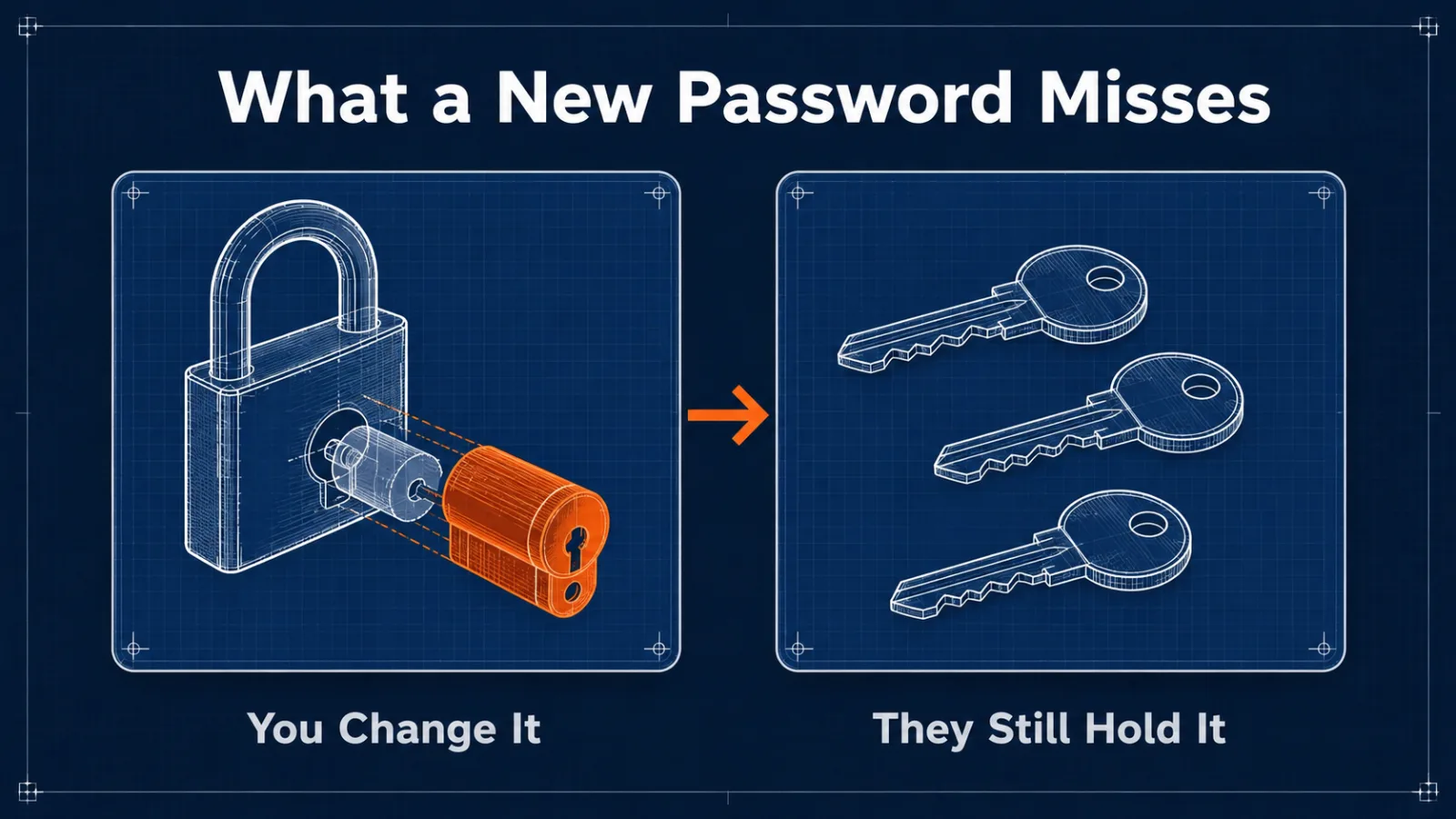
Every time you clicked “continue with Google” or authorized a scheduling tool to post for you, you handed out standing permission. That permission holds a token, and the token keeps working after you change your password.
The tools worth connecting are worth reviewing. Anyone running a stack of social media management tools has approved more of these than they remember, and each one can read or publish under your name.
How to Run the Review
To start, open the security settings on each major account and find the list of connected or authorized apps. Remove anything you don’t recognize, don’t use, or trialed once.
Check what each remaining app is allowed to do. An app that only needs to read your calendar shouldn’t hold permission to send mail as you.
Put it on a quarterly reminder. The list grows quietly, and reviewing it takes ten minutes.
Treat API Keys Like Passwords
An API key is a password that doesn’t look like one, which is why it ends up in places a password never would.
Keys get pasted into spreadsheets, chat messages and screenshots. They get committed to code repositories, where automated scanners find them within minutes of going public. Choosing between GitGuardian alternatives usually comes down to whether the scanner catches the leak at commit time or only after the fact, because a credential already published is far more expensive to clean up than to prevent.
Give each key the narrowest permission that does the job, and a separate key per tool so one leak doesn’t become all of them. Rotate them when someone leaves and when a tool is retired.
Updates Are Still the Cheapest Defense
Most successful attacks use a hole that was already fixed.
A patch is a public announcement that a weakness exists, which makes unpatched systems easier to attack after the fix ships than before. The window between release and installation is the exposure, and patch management is the discipline of keeping it short.
Turn on automatic updates for browsers, operating systems and anything internet-facing. For the rest, decide who checks and how often, because a rule nobody owns isn’t a rule.
Assume a Vendor Will Be Breached
You can’t audit the security of a company whose product you pay for monthly.
What you can control is how much a breach at that company costs you. Upload only the data the tool needs, delete what it no longer needs, and check whether its settings let you turn off retention or model training.
Unique passwords matter most here. When a vendor loses its password database, the damage stops at that one service instead of spreading to every account sharing the same login.
Keep Your Own Copy
Your vendor’s backup protects the vendor.
It restores their service after their outage. It does nothing when your own account is locked, closed over a billing problem, or emptied by somebody signed in as you.
Export the data you’d miss on a schedule, to storage you control. Most tools have an export button that nobody presses until the week they need it.
Then open the export and check it. A backup nobody has ever restored is a hope rather than a copy.
Close the Door When Someone Leaves
Access outlives employment more often than anyone plans for.
Changing a password doesn’t sign anyone out. Look for the option to revoke active sessions, which is what forces every signed-in device to authenticate again.
Shared logins make this harder, because removing one person means changing a credential everybody uses. Individual accounts with named owners cost slightly more and save the whole exercise.
A Twenty-Minute Checklist
- Turn on a second factor for your email, then your two most valuable tools.
- Open the connected-apps list on each and revoke what you don’t use.
- Move any password you’ve reused into a manager and change it.
- Find every API key you’ve issued and confirm each one still needs to exist.
- Switch on automatic updates for your browser and operating system.
- List who has access to what, so the next departure is a five-minute job.
None of that needs a budget or a security team. It closes the routes the standard advice never mentions.
Questions People Ask About Protecting Software
Does antivirus protect software that runs in a browser?
Not in any meaningful way. Antivirus watches files and processes on the device, while a browser-based tool holds your data on the vendor’s servers. Someone signing in as you from their own machine never touches yours.
What is the single most effective step?
Turn on a second sign-in factor for the accounts that hold the most, and make it a passkey or an authenticator app rather than a text message. It stops the attack that starts with a password someone already has.
How risky are connected apps?
They hold standing access that survives a password change. An app you approved once and forgot keeps its permission until you revoke it, which is why the connected-apps list is worth reviewing on a schedule.
Is a text-message code good enough?
It beats nothing and it is the weakest option available. Phone numbers can be moved to another device by someone who convinces your carrier, and that hands over the code.
What should you do when a vendor you use is breached?
Change that password, sign out every active session, and review what that account had connected to it. Then expect phishing that references the breach by name, because it usually follows.
Guard the Account, Not the Hardware
Start with the connected-apps list on your main account, because it takes ten minutes and it’s usually the one nobody has ever opened.
What you find there is a record of access you granted and forgot, still valid, still working.
The computer on your desk is the part everyone tells you to defend. Your software is somewhere else, and so is the way in.
Add SocialAtoZ as a preferred source
See us more often in your Google results.