Blocking or unblocking someone on Snapchat can often be a convenient solution to exit uncomfortable or potentially infuriating conversations. Yet there are instances when we might impulsively block someone on messaging platforms like Snapchat out of fleeting anger. Have you found yourself in such a situation? If your response is affirmative and you’re now seeking a way to reverse the block, you’ve landed in the right place. This article provides a comprehensive guide to unblocking someone on Snapchat, whether you’re using an iPhone or an Android device.
Block or Unblock Someone on Snapchat
If this topic has resonated with your intentions to potentially block or unblock someone on Snapchat, you’re in luck, as we provide you with step-by-step guidelines for both actions. Utilize the following table to swiftly navigate to the respective “Block Someone on Snapchat” or “Unblock Someone on Snapchat” sections within this article. Now, let’s delve into the details.
Also Read: How to Unlock the Butterflies Lens on Snapchat
Unlocking a Blocked Snapchat User (For Android and iOS)
- Launch the Snapchat app and tap on your Bitmoji icon situated in the top-left corner of the screen. This action will direct you to your profile page.
- Within your profile page, locate the Settings icon positioned in the top-right corner
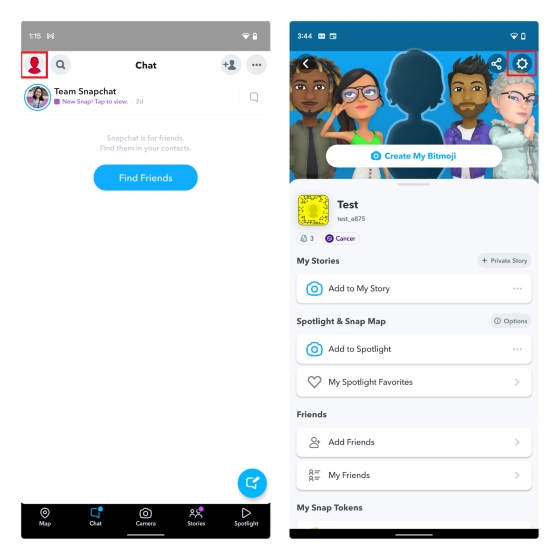
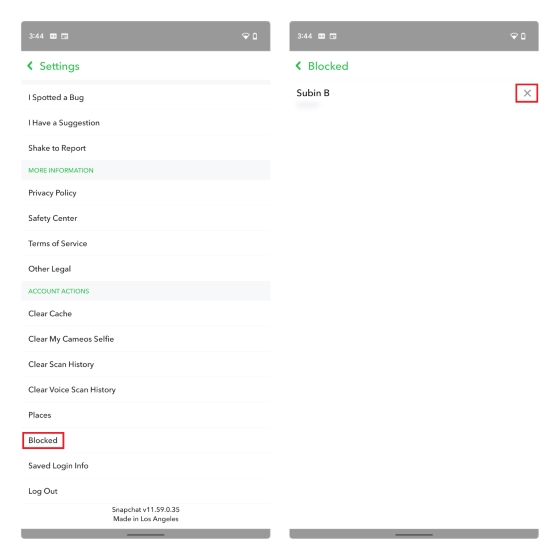
- Scroll downwards until you come across the “Blocked” option within the “Account Actions” section. Tap on “Blocked” to proceed. This action will present you with a comprehensive list of Snapchat users you have blocked over time.
- Adjacent to each user’s Snapchat display name, you will notice an ‘x’ icon. By tapping this ‘x’ icon, you can unblock the user.
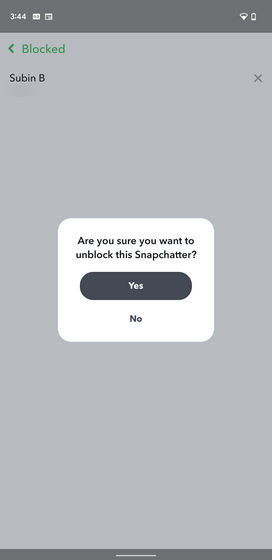
- After tapping the ‘x’ icon to initiate the unblocking process, a confirmation prompt will appear. Select the “Yes” option in this prompt to finalize the action. Congratulations, you have successfully unblocked the individual on Snapchat.
Blocking a User on Snapchat
If you’re seeking a solution to halt communication with an individual who’s causing you distress on Snapchat, adhere to the following steps:
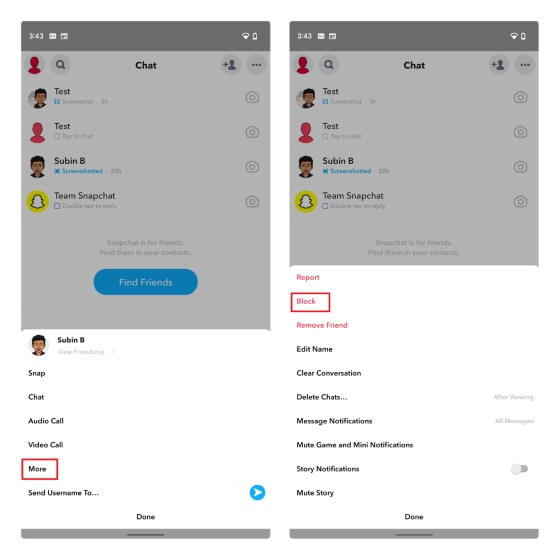
- Access the chats screen by tapping the bottom navigation bar. On this screen, long-press the contact you wish to block.
- Upon doing so, a contextual menu will emerge. Tap on “More” within this menu.
- As the expanded context menu unfolds, select the “Block” option. By doing so, you’ll effectively cease all interaction with that specific person.
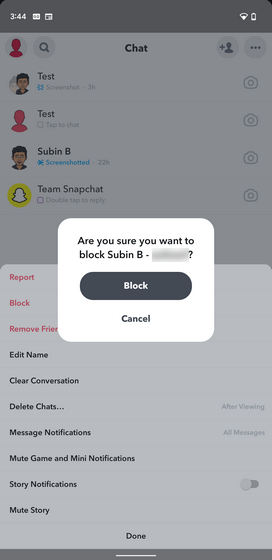
- Subsequently, a confirmation prompt will materialize, prompting you to confirm your decision to block the person. To proceed, tap “Block” once more, and your action will be finalized.
FAQs:
What happens if you block and then unblock someone on Snapchat?
Blocking and subsequently unblocking someone removes them from your contacts list. To resume communication, you will need to re-add them as a contact.
Will someone be notified if I unblock them on Snapchat?
No, Snapchat does not notify a person when you unblock them.
Can you access past Snapchat messages after unblocking someone?
Old chat history remains accessible to both parties. However, messages sent while the person was blocked will not be delivered upon their unblocking.
How can I tell if someone blocked me on Snapchat?
You can determine if someone blocked you by checking your contact list or searching for their username. Alternatively, ask a friend or use a secondary account to see if their username appears in search results.

May 29, 2026

May 29, 2026

May 29, 2026

May 29, 2026
May 29, 2026