
Clearing the cache on Snapchat is a useful practice to maintain the app’s performance and free up storage space on your device. Over time, Snapchat accumulates temporary data and media files, which can slow down the app and consume valuable memory. By knowing how to clear cache on Snapchat, you can ensure a smoother Snapchat experience. It’s essential to note that clearing the cache won’t delete your messages or saved content, but it will remove temporary files, improving the app’s speed and responsiveness. Whether you’re facing lag issues or simply aiming to declutter your device, regularly clearing the cache is a simple yet effective way to optimize your Snapchat experience.
Clearing Snapchat Cache on iPhone
Snapchat simplifies the process of clearing cache for its users with just a few easy taps. In addition to deleting cache files for the entire app, iPhone users can now also clear cache for specific features. Notably, the “Lens” cache tends to occupy the most space. This convenient iPhone feature lets you declutter your “Lens” cache without affecting any other files.
Follow these steps to effectively clear the Snapchat cache on your iPhone:
- Launch the Snapchat app.

- Tap your Bitmoji in the top-left corner to access your profile.
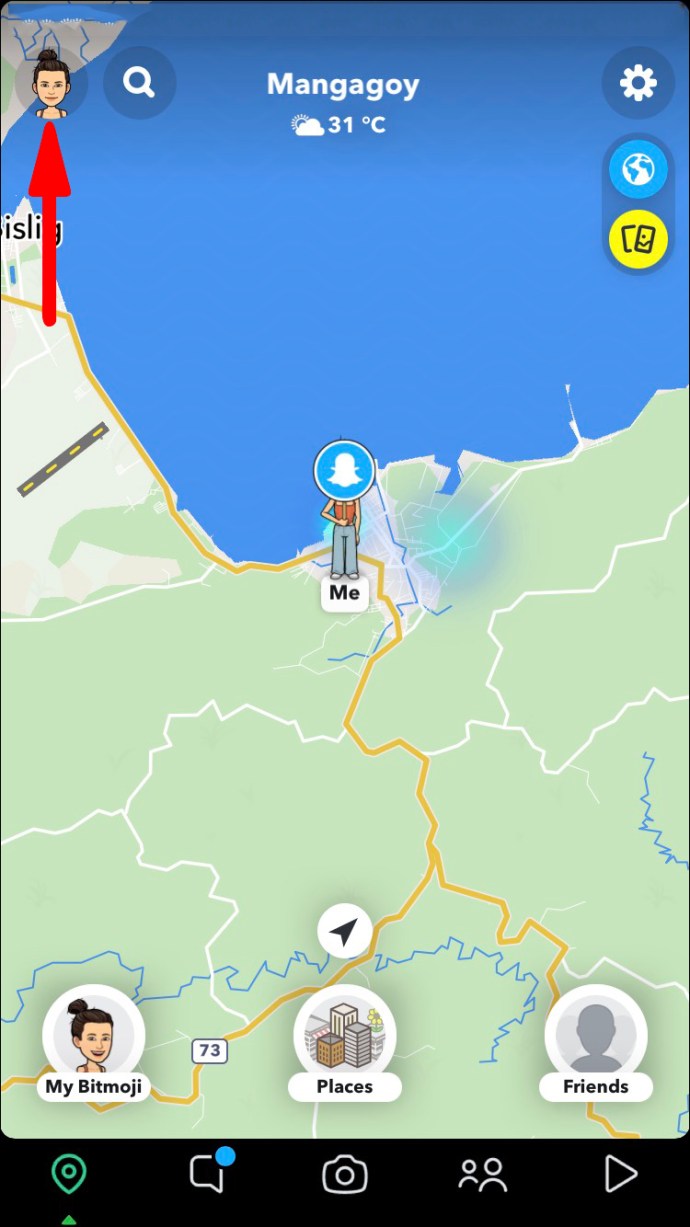
- Click on the cogwheel icon situated in the top-right corner to enter the “Settings” menu.

- Keep scrolling down until you reach the “Account Actions” tab.
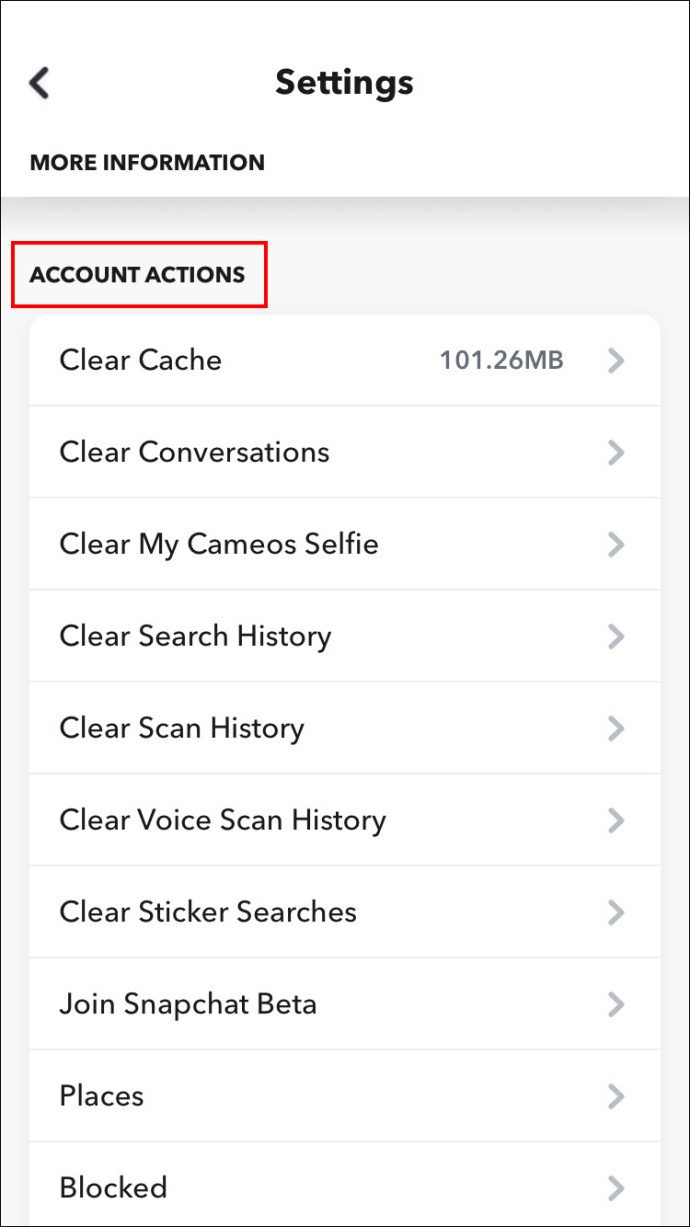
- Choose “Clear Cache.”

Now you can select which cache you’d like to clear. For example, if you want to clear only the camera cache, simply tap on its corresponding option. Upon selection, you’ll receive a message indicating that all caches will be cleared, while your Memories backup remains unaffected. Confirm this action by tapping “Confirm” in the ensuing pop-up window.
If you wish to clear all the cache from the app, follow these steps:
- Select the option “Clear All Cache”.
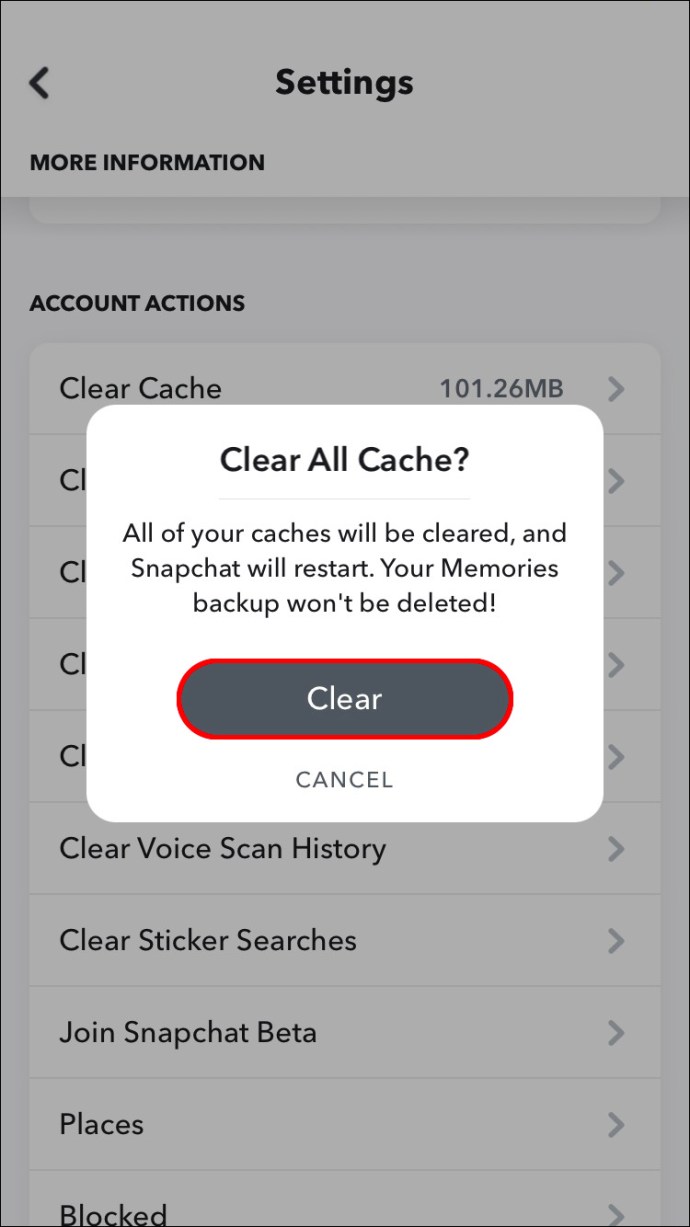
- Click on “Confirm” to complete the process.
Clearing Snapchat Cache on an Android
Unlike iPhone users, Android users can clear the cache for the entire app, rather than for specific features. This action, while not as granular, remains highly beneficial. You can accomplish this in just five simple steps.
- Start by opening the Snapchat app.

- Next, tap your profile icon in the top-left corner of your screen.
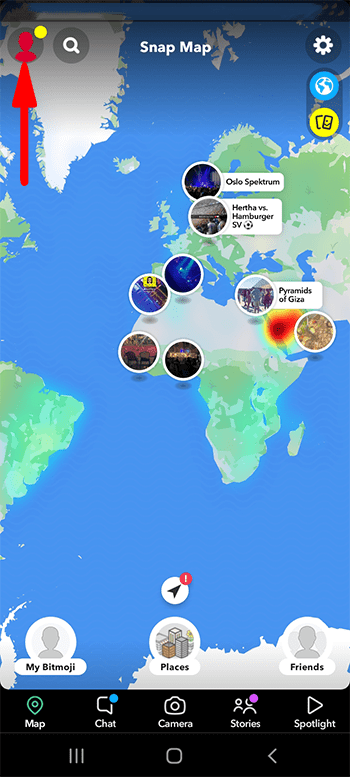
- Now, click on the gear icon positioned at the top-right corner to access the “Settings” menu.

- Keep scrolling down until you locate “Clear Cache” situated under the “Account Actions” section.

- Finish the action by choosing “Continue” in the pop-up window.
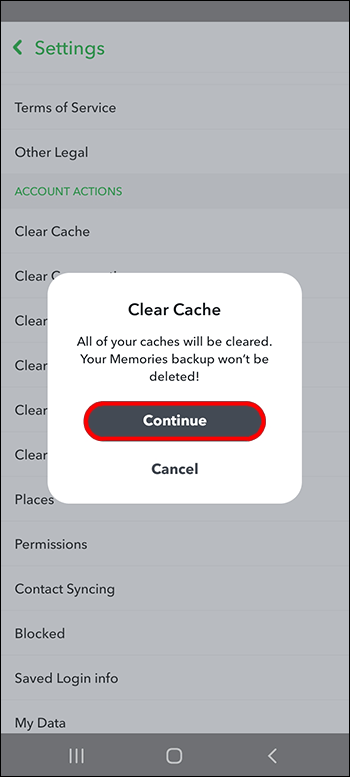
The app will show a message reading “Successfully cleared cache,” indicating the process has completed.
What does the Snapchat Cache Store mean?
The Snapchat cache serves as designated storage on your device, holding frequently accessed files for quick and easy retrieval by the app. When you return to an app, the necessary information is already in the cache, speeding up the process compared to downloading it anew. This enhances the app’s loading speed and overall efficiency.
Snapchat’s cache system is comprehensive, storing images and videos shared with friends and retaining data from your stories, filters, and lenses. Additionally, if you integrate third-party apps or plugins with Snapchat, the cache will duplicate files associated with those integrations.
Why You Should Clear Cache on Snapchat?
While the cache helps optimize Snapchat’s performance, an excess of stored files can have the opposite effect. This may result in the app running sluggishly or issuing warnings of a full disk. In such cases, clearing your cache provides a straightforward solution.
Moreover, Snapchat is known to consume a substantial portion of your device’s storage capacity. Consequently, purging the Snapchat cache can prove invaluable in reclaiming vital space if your device is nearing its capacity limit.
Should you encounter any Snapchat issues that require a reinstall, pre-clearing the cache will significantly expedite the reinstall process.
Also Read: How to Download your Snapchat Data?
What Happens When You Clear Snapchat Cache?
When you clear the Snapchat cache, you might be concerned about losing important data, such as cherished memories, photos, videos, and chats. However, rest assured that there’s very little to worry about.
Clearing the Snapchat cache primarily targets the app’s least critical data. For instance, it removes thumbnail previews rather than actual photos. In simpler terms, the app removes nonessential data, resulting in improved performance and smoother operation.
In the event Snapchat requires any of the removed data in the future, it can effortlessly download it again the next time you launch the app.

May 29, 2026

May 29, 2026

May 29, 2026

May 29, 2026

May 29, 2026